
Setting up your email account in Outlook or Thunderbird
With a few simple steps, you can set up your email account in Outlook or Thunderbird. Just follow this guide:
1. Open account settings
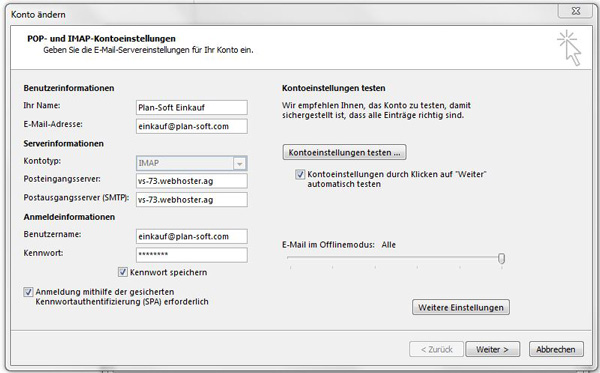
Start Outlook and open Account Settings. Select the desired email account or add a new one.
2. Enter account details
Enter the following information:
- Your Name: Desired display name
- Email address: Your full email address
- Account type: IMAP or POP3
- Incoming mail server: vs-73.webhoster.ag
- Outgoing mail server (SMTP): vs-73.webhoster.ag
- Username: Your email address (e.g., xyz@xyz.de)
- Password: Your personal password (see activation overview)
- Enable „Secure Password Authentication“
3. Further settings
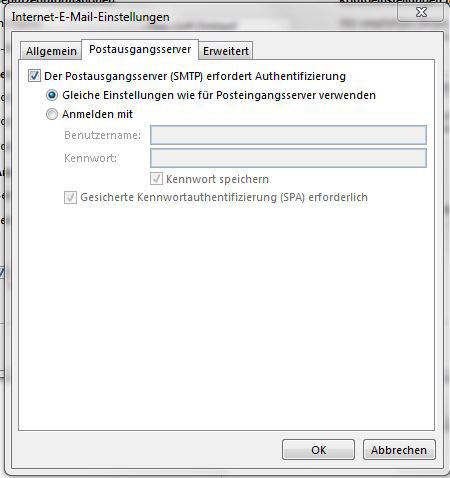
Click „More settings“ and go to the „Outgoing server“ tab.
Enable „Use same settings as for incoming mail server.“.
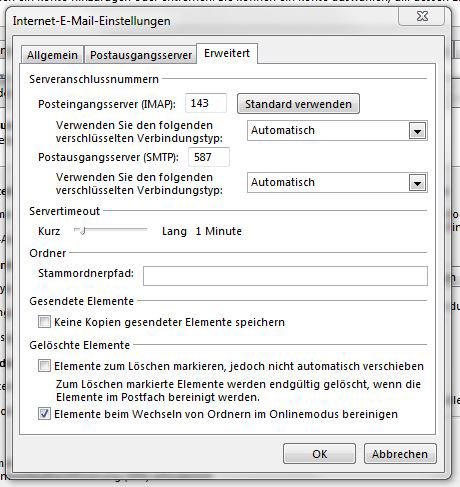
4. Advanced Settings
Switch to the „Advanced“ tab and enter the following server data:
For IMAP
- Incoming mail server: 993
- Encryption: Automatic
- Outgoing mail server (SMTP): 587
- Encryption: Automatic
For POP3
- Incoming mail server: 995
- Encryption: Automatic
- Outgoing mail server (SMTP): 465 or 587
- Encryption: Automatic