
Setting Up Your Email Account on Mobile Devices
How to set up your email address on iPhone
With this step-by-step guide, you can quickly and easily configure your email account on your iPhone:
1. Open Settings
Open the Settings app on your iPhone.
2. Add Mail Account
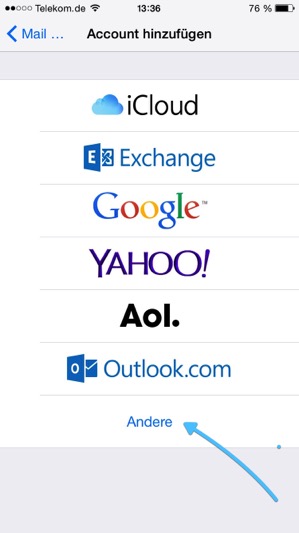
- Tap „Mail“ (or „Mail, Contacts, Calendars“ depending on your iOS version).
- Select „Add Account“.
- Tap „Other“ and then tap „Add Mail Account“.

3. Enter Account Details
Enter the following information:
- Your desired display name
- Email address: Your full email address
- Password: Your personal password
- Description: A user-selectable name for the account (e.g., „Company Email“)
Then tap „Continue“.
4. Select account type
Select the desired account type: IMAP or POP3.
Next, scroll down to the „Incoming Mail Servers“ section.
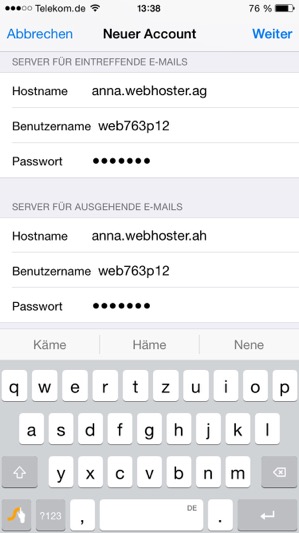
5. Enter server data
Enter the following information for the incoming and outgoing mail server:
- Hostname: vs-73.webhoster.ag
- Username: Your email address (e.g., xyz@xyz.de)
- Password: Your password
Tap „Continue“ – your iPhone will now automatically check your settings.
6. Adjust SMTP Settings
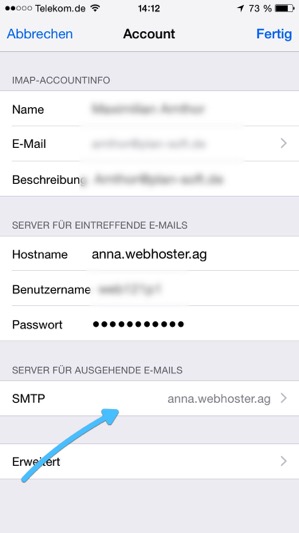
- Open the configured mail account again.
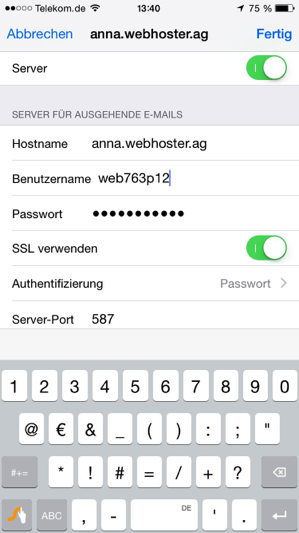
- Tap „SMTP“ under „Outgoing Mail Server.“.
- Select the first SMTP server.
- Enable SSL if you haven't already.
- Set the server port to 587.